
Payment Terms
intro / abstract
ERPNext includes functionality that allows a user to specify the payment terms within a Quotation, Purchase Order, Purchase Invoice, Sales Order, Sales Invoice, or a Point of Sale Invoice. A link in the document to a pre-defined Payment Terms Template automatically lays out the payment agreement via one or more Payment Terms. Individual Payment Terms may be structured in a variety of ways, including when the payment is due, what portion of the invoice it's for, and whether or not there's a discount.
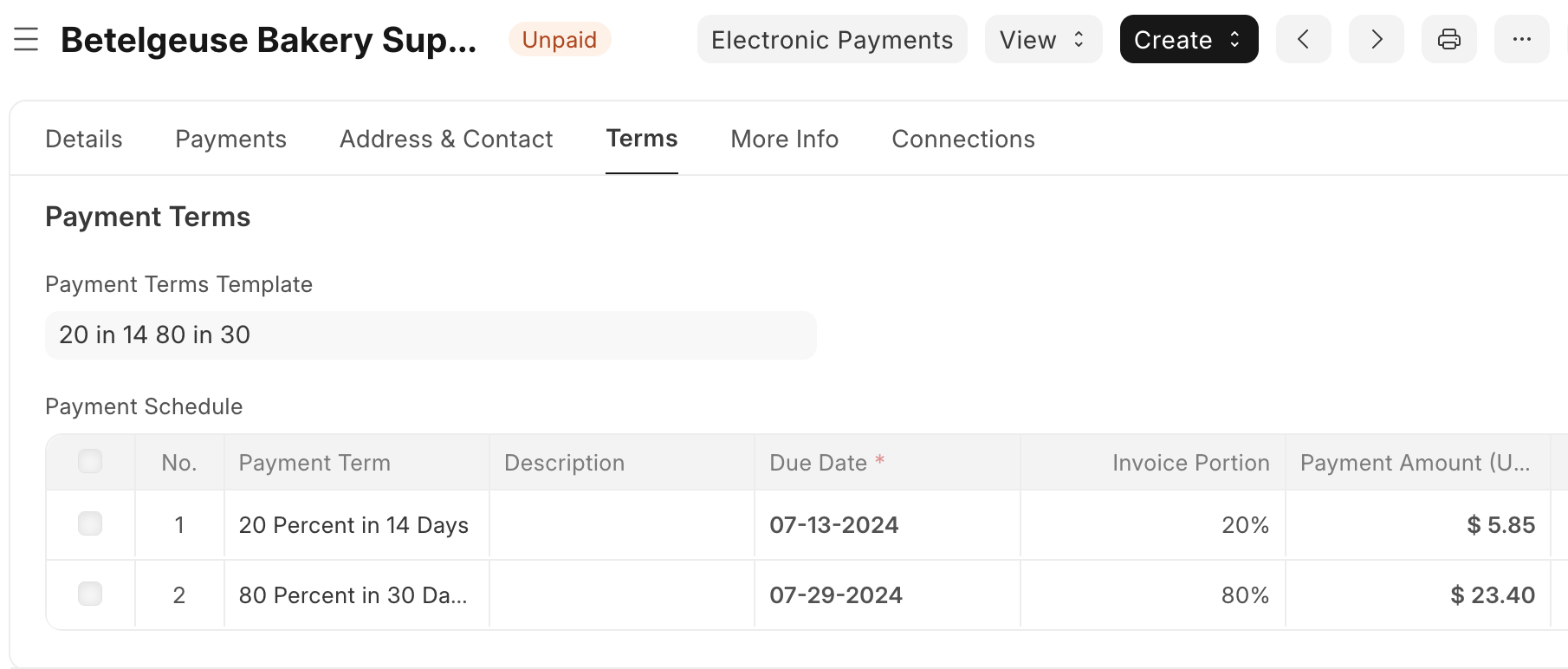
Payment Terms
Before a user can apply a Payment Terms Template in a Quotation, Order, or Invoice document, they must first define the individual Payment Terms that make up the template. A new Payment Term must have a unique name, then may be structured in a variety of ways, depending on its characteristics.
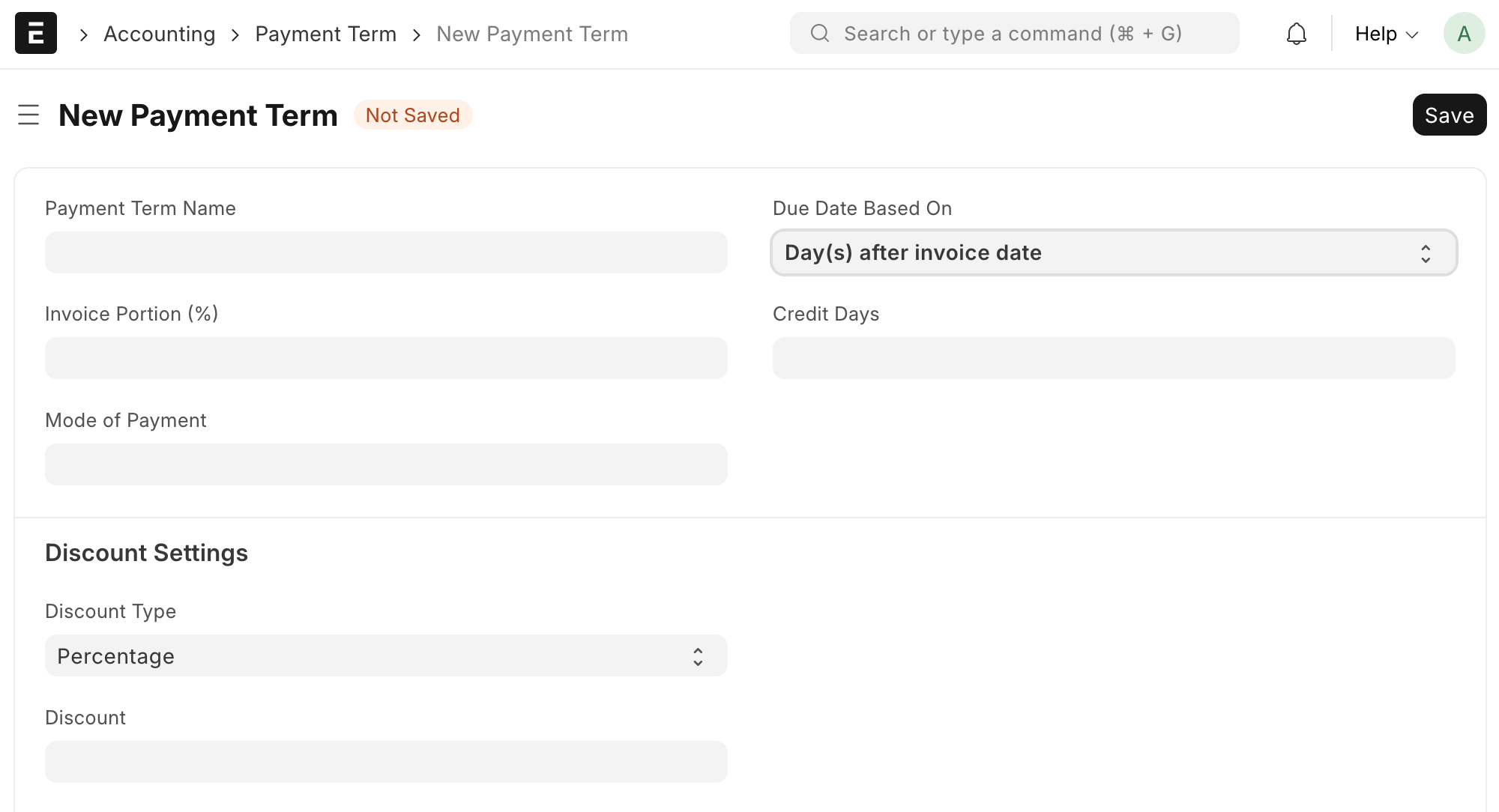
Date-based Payment Terms
A common form of Payment Term is when the entire bill's amount is due a certain number of days or months after it's sent. Common examples include Net 14 (due in 14 days) and Net 30 (due in 30 days).
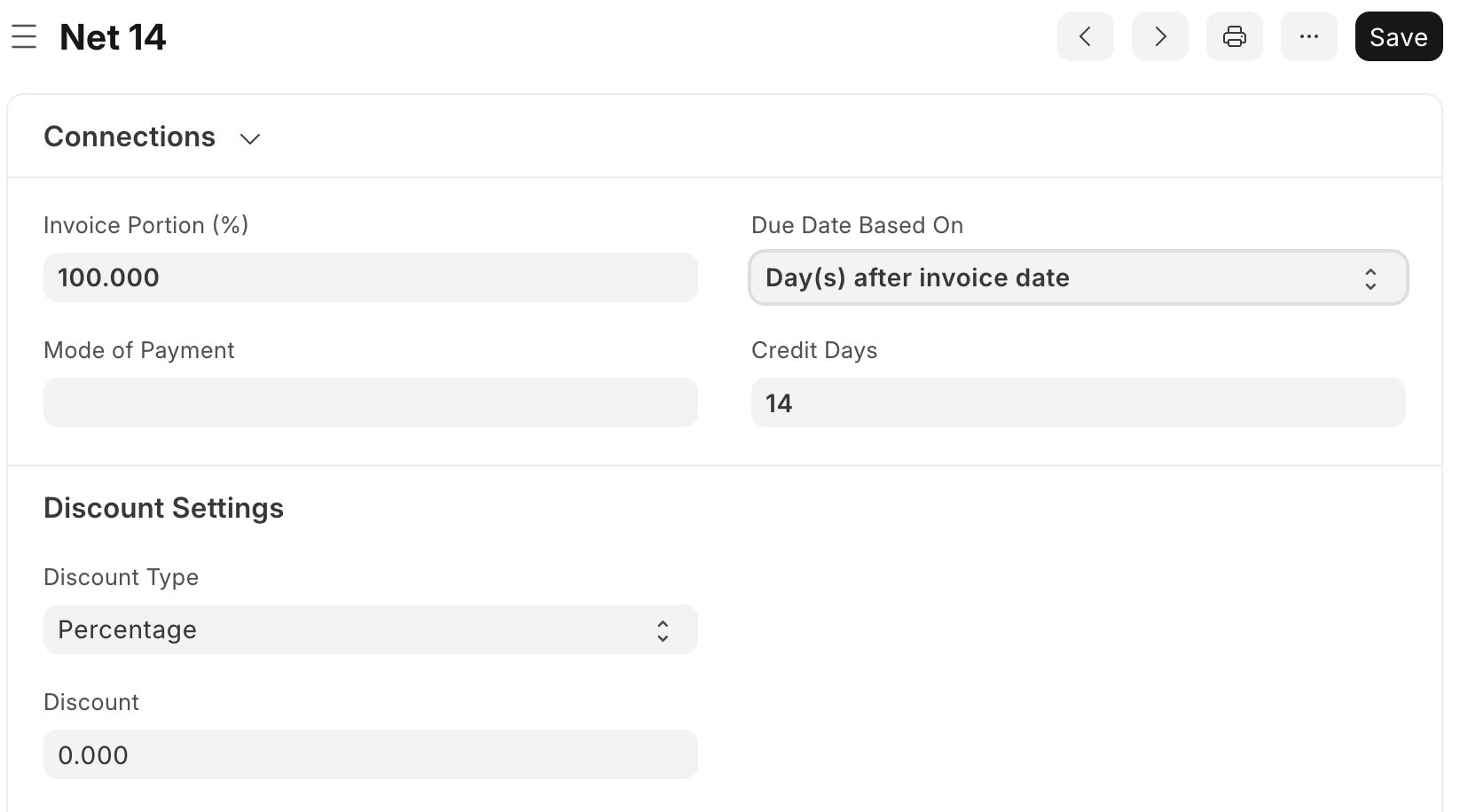
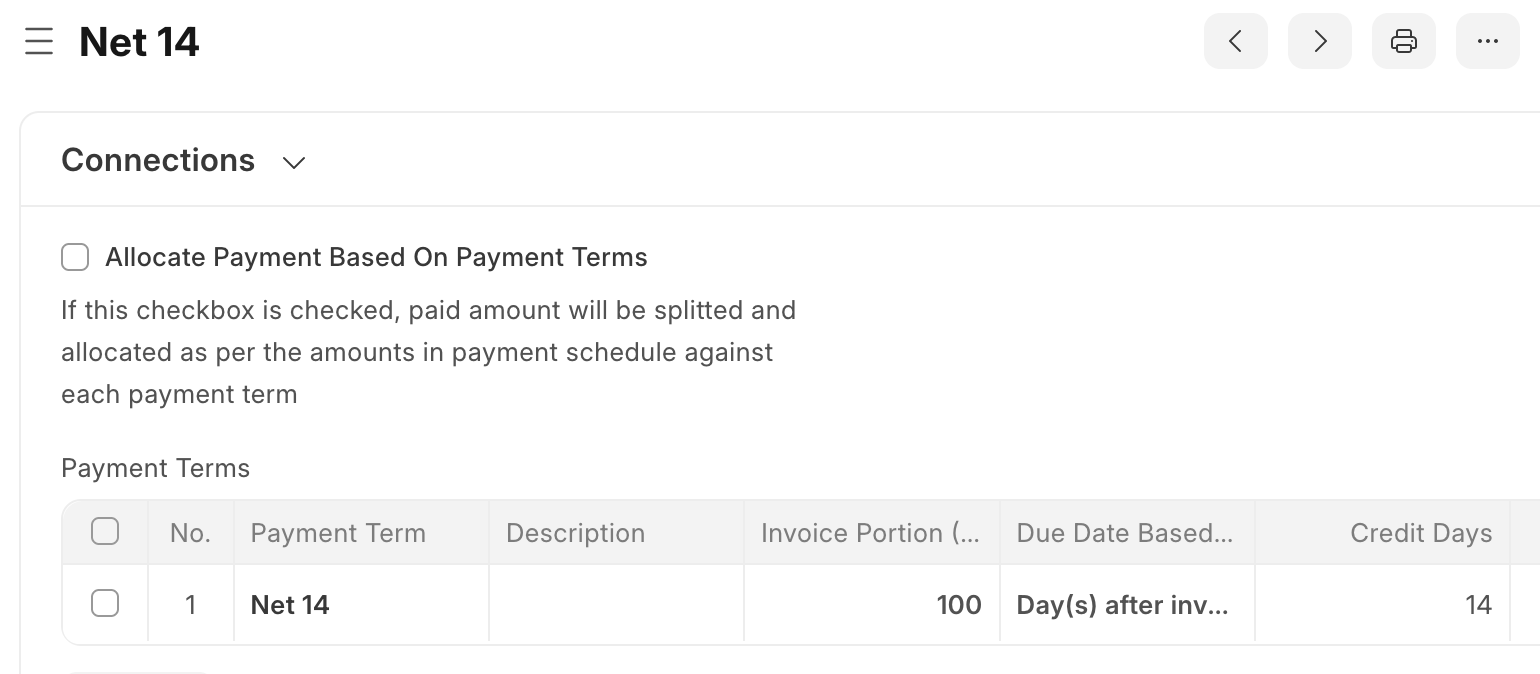
In the case or a Net 14 Payment Term, the Invoice Portion is set to 100%, the Due Date Based On field selects Day(s) after invoice date, and the Credit Days is set to 14. (This field would be 30 in the Net 30 example). The Discount Settings section is ignored, as it's not applicable for this example.
ERPNext also gives the option to set the Due Date Based On field to use days calculated off the end of the invoice month or in months calculated off the end of the invoice month. For example, if the Net 14 Payment Term's Due Date Based On field were changed to Day(s) after the end of the invoice month, an invoice created in mid-February would use the end of February to start calculating the days, and have a due date of March 14.
Installment-based Terms
Payment Terms may also be structured to represent payment installments of the Quotation, Order, or Invoice. In this case, the user must create an individual Payment Term for every installment (each with a unique name) that's for the percentage of the total amount of the bill. Taken together, the sum of the Invoice Portion for all the installments should add to 100. It's important to note that each term representing an installment still requires due date configuration.
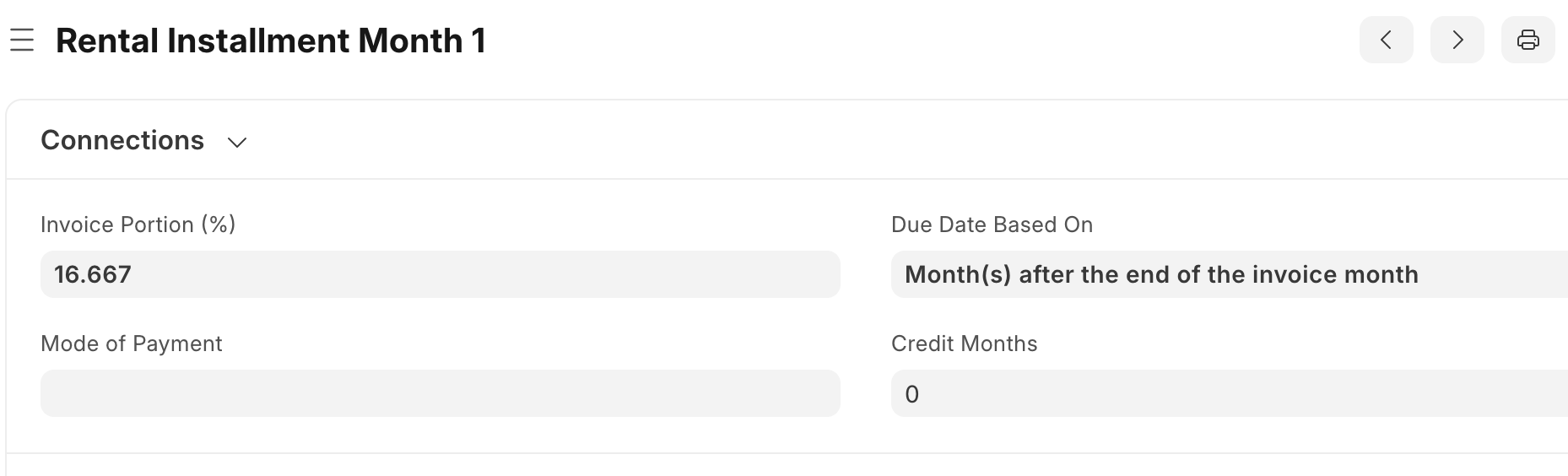
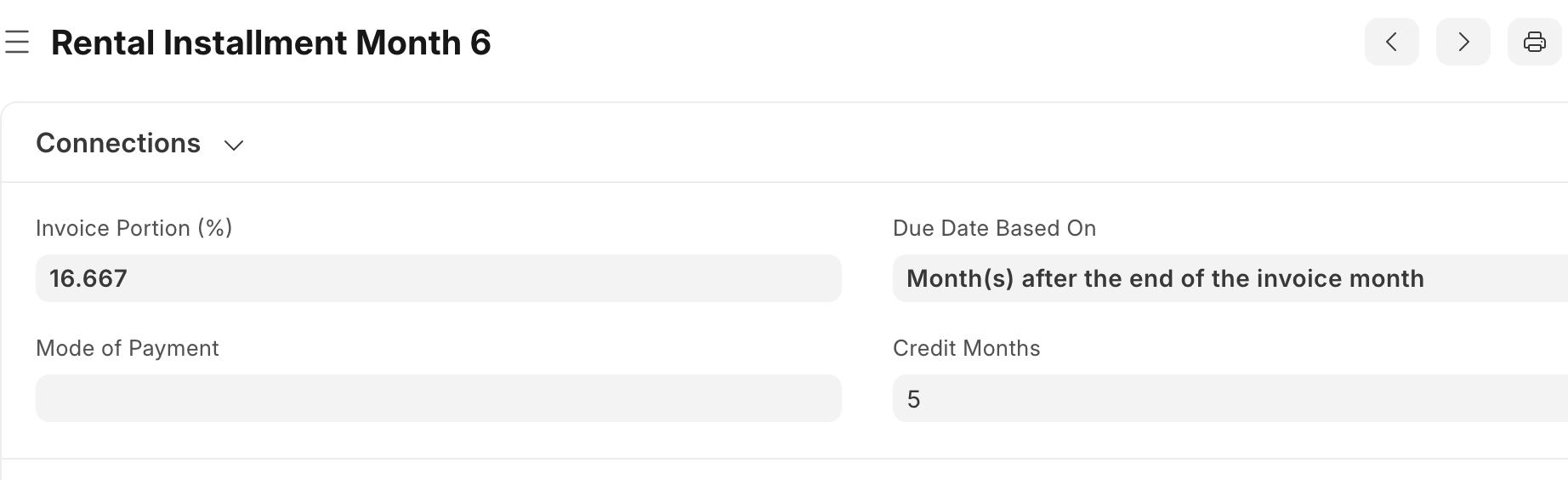
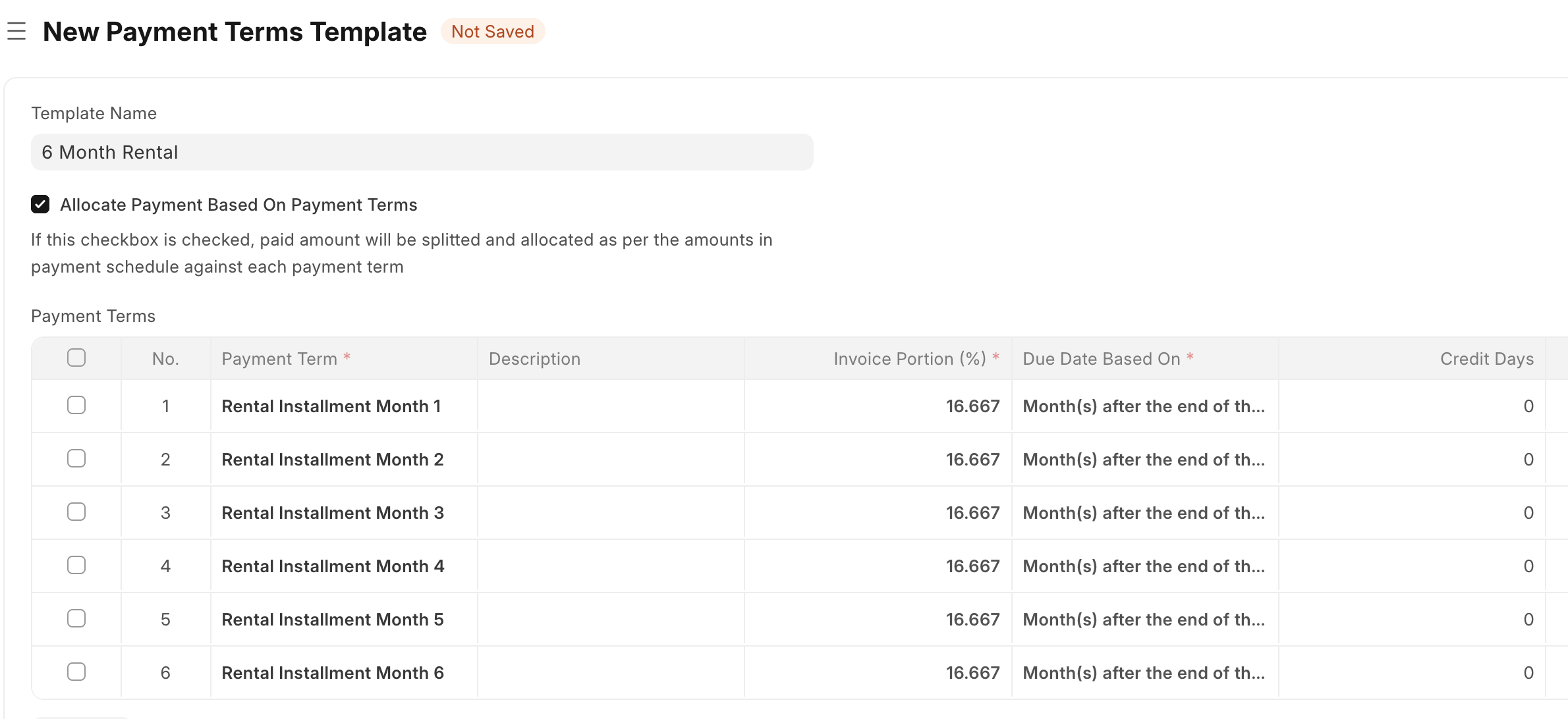
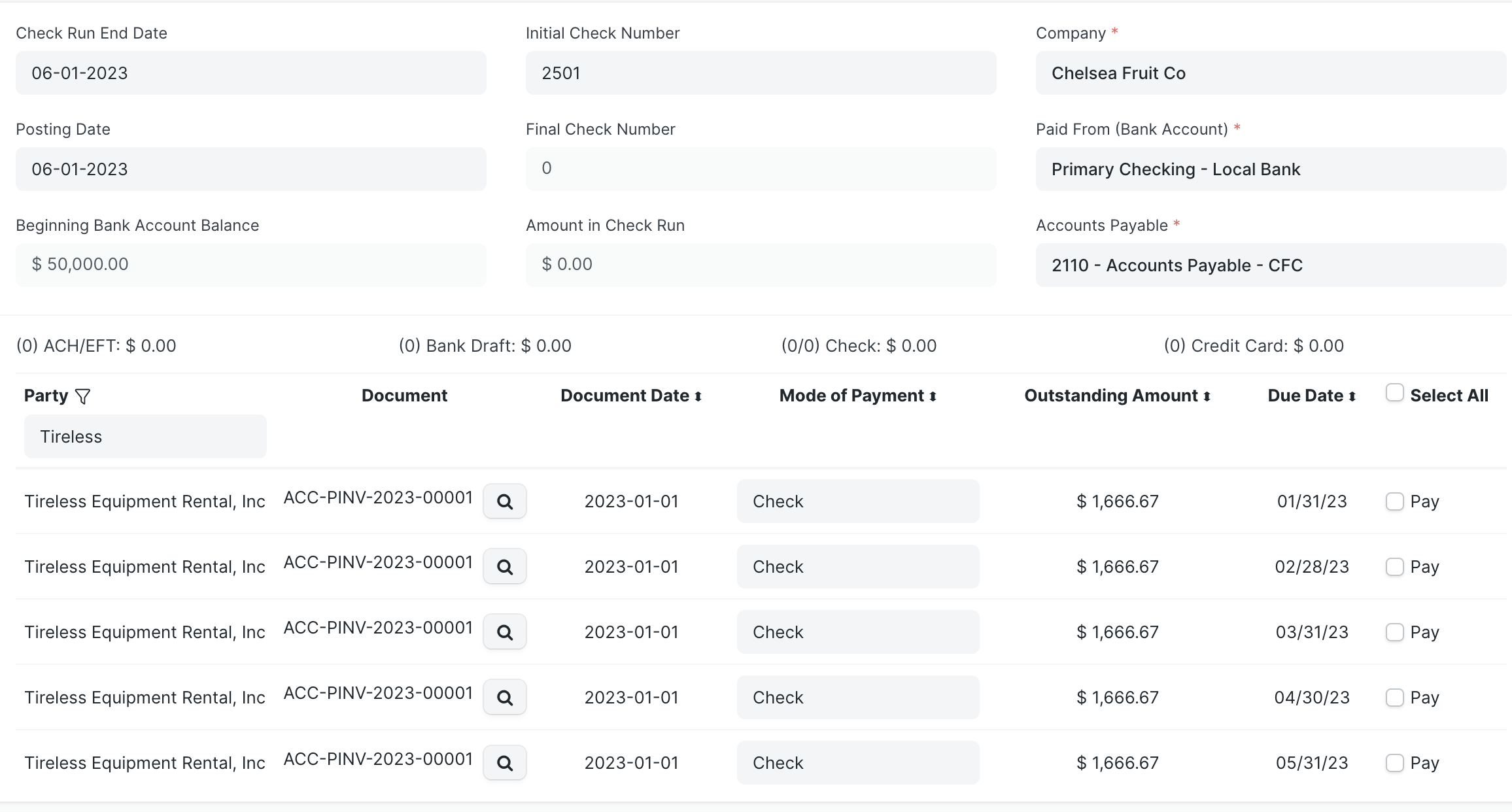
For example, a company may rent a piece of equipment for 6 months, with equal installments due every month. It would create 6 Payment Terms total, each having an Invoice Portion set to 16.667 (1/6 of 100), the Due Date Based On field set to Month(s) after the end of the invoice month, and the credit month ticking up by one each Payment Term. The following screen shots show Payment Terms for the first and sixth months. Note that the Credit Months field is set to zero for the first month since this example assumes the first payment is due at the end of the month the agreement is entered into.
Performance-based Payment Terms
It's also possible to structure Payment Terms to represent performance-based installments. For example, a company selling software development services may want to structure a Sales Invoice for a large deliverable with terms representing the project's milestones. The individual Payment Terms would be set up in a similar manner as the installment-based section - there needs to be one Payment Term per milestone with its respective Invoice Portion, and the sum of the Invoice Portions of all milestones must add to 100.
Similar to both the dated-based terms and installment-based terms, performance-based payment terms still require the configuration of a due date. As noted in the Progressive Invoicing section below, at the time of writing, progressive and performance-based invoicing - or the ability to invoice a Quotation or Order in multiple installments as fulfillment targets are met - is a requested but unimplemented feature in ERPNext.
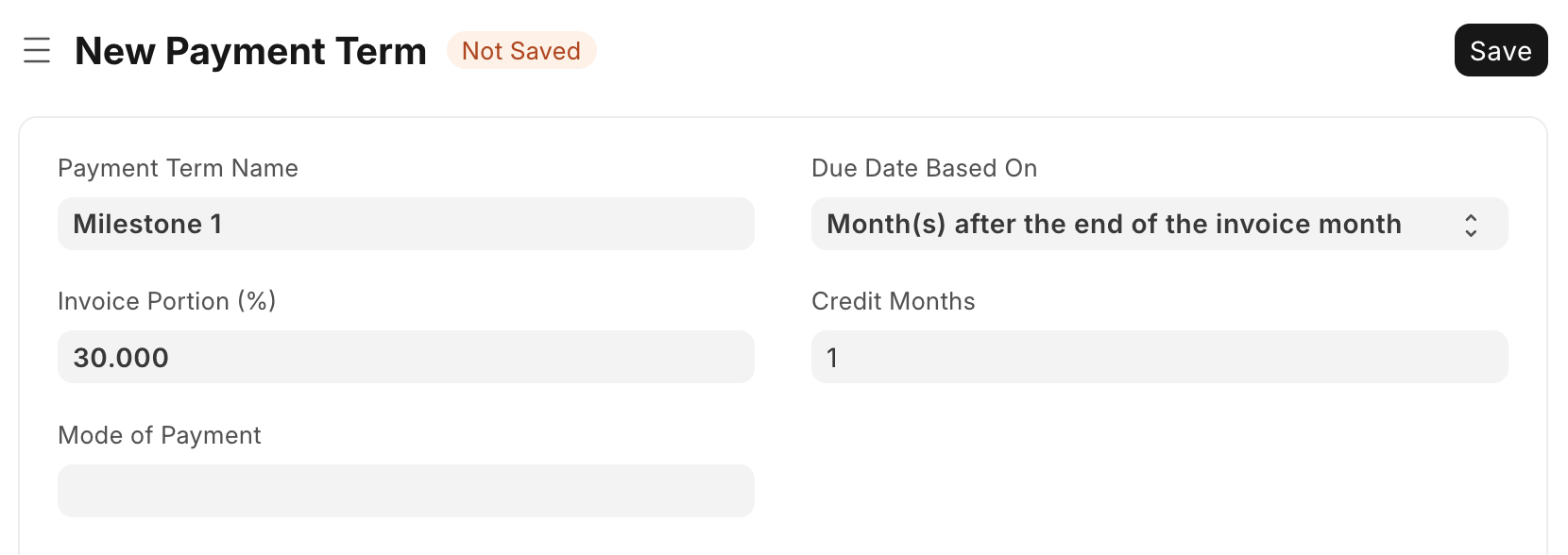
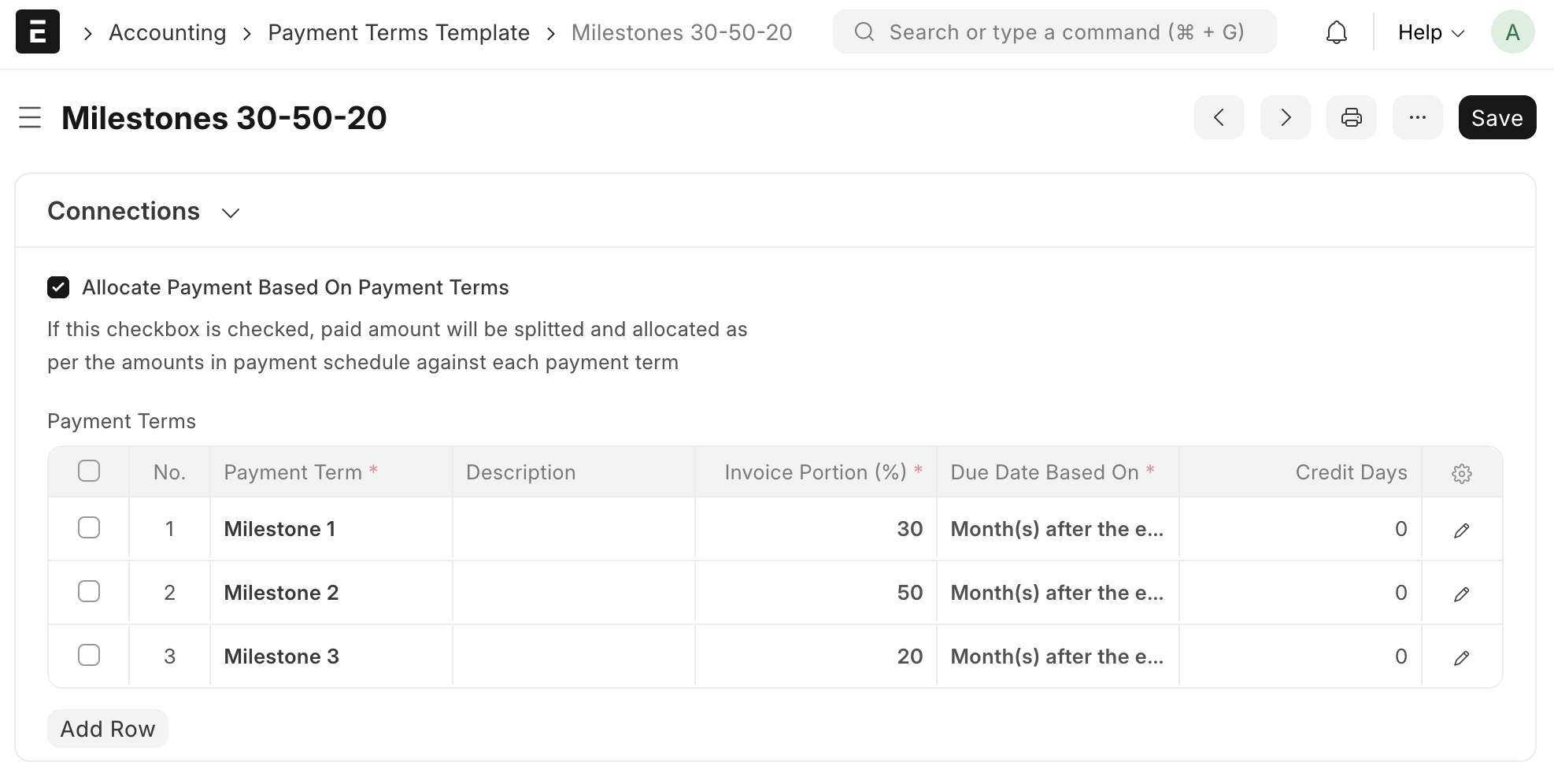
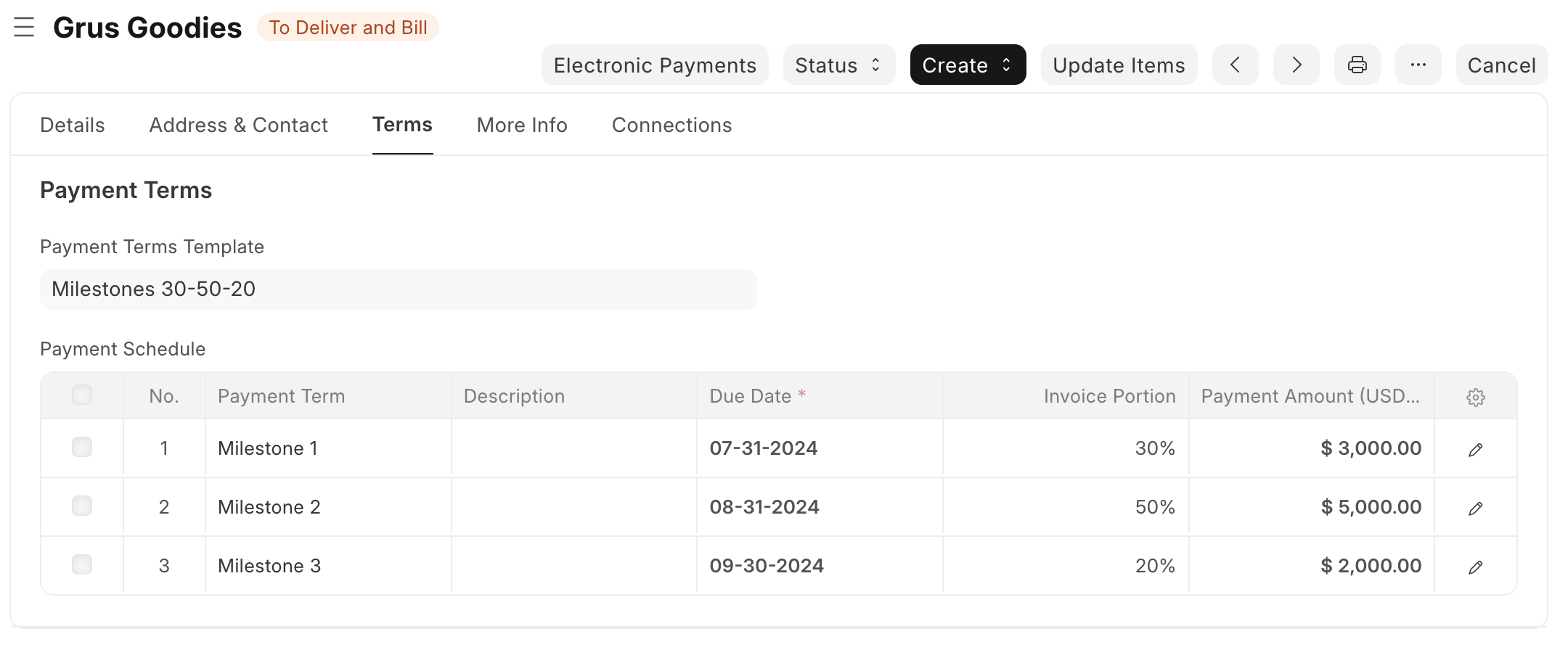
If the company has three milestones, the first for 30% of the project, the second for 50%, and the third for 20%, the user could structure the first Payment Term as shown.
Discount Payment Terms
ERPNext also allows Payment Terms to include discounts, which are set in the Discount Settings section. Discounts may be for a set amount or a percentage off the document's total (selected in the Discount Type field) with the actual percentage or amount specified in the Discount field. The user also needs to set the parameters so ERPNext knows when a payment applies for the discount. The options are similar to setting the due date of the term itself - discounts can be valid for days or months after the invoice date, with the specific number of days/months set in the Discount Validity field.
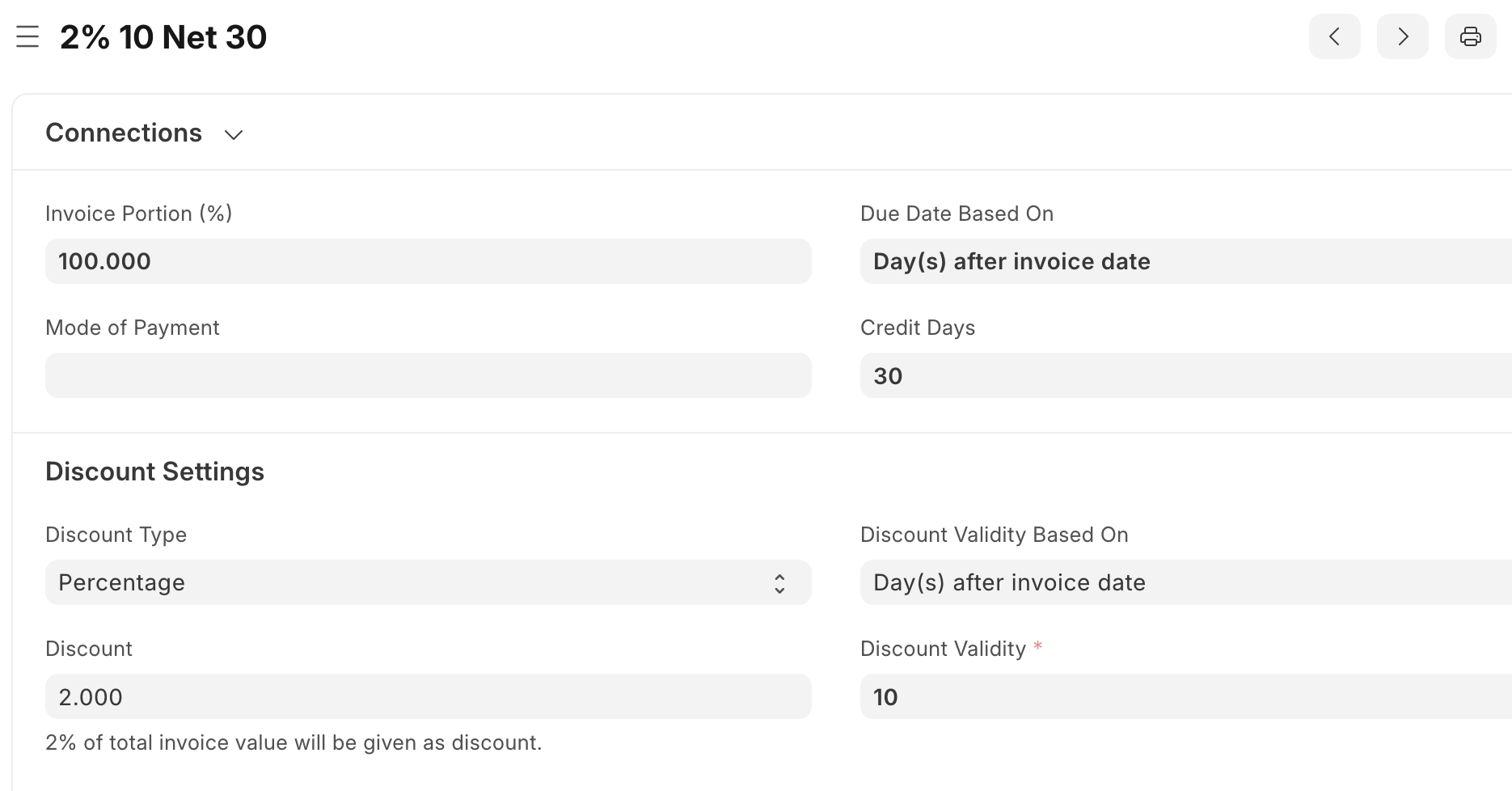
The following example shows how to structure a Payment Term where the party receives a 2% discount if they pay off the invoice within 10 days, otherwise it's due in full within 30 days.
Payment Discount Accounting Settings
There are two settings that will influence how ERPNext accounts for discounts.
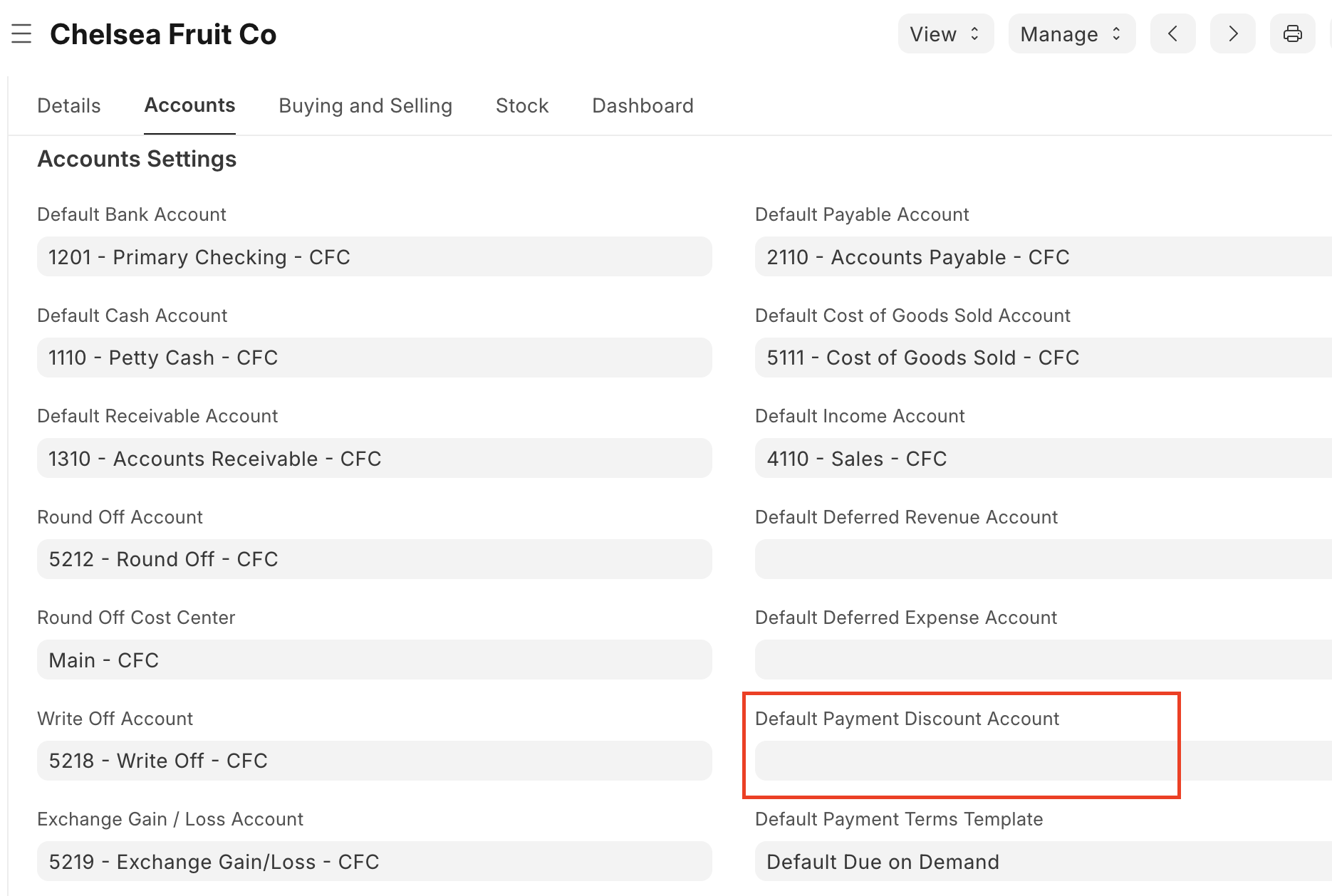
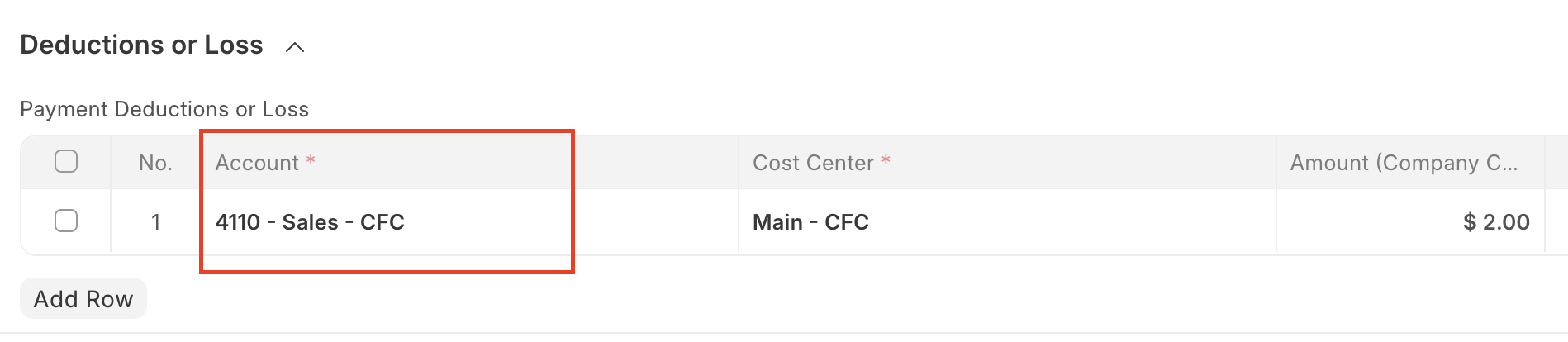
First, under Company -> Accounts -> Accounts Settings, the user can optionally set the Default Payment Discount Account field. When a party's payment includes a discount in a Payment Entry, ERPNext autofills the Account field in the Payment Deductions or Loss table. It's important to note that ERPNext will use this default account for both cases of discounts given to the company on purchases and discounts granted by the company on sales. ERPNext credits the account for purchase discounts and debits the account for sales discounts. The default does not have to be set, the user can manually enter the appropriate account, especially if the company has a contra-revenue account for sales discounts and a separate contra-expense account for purchase discounts.
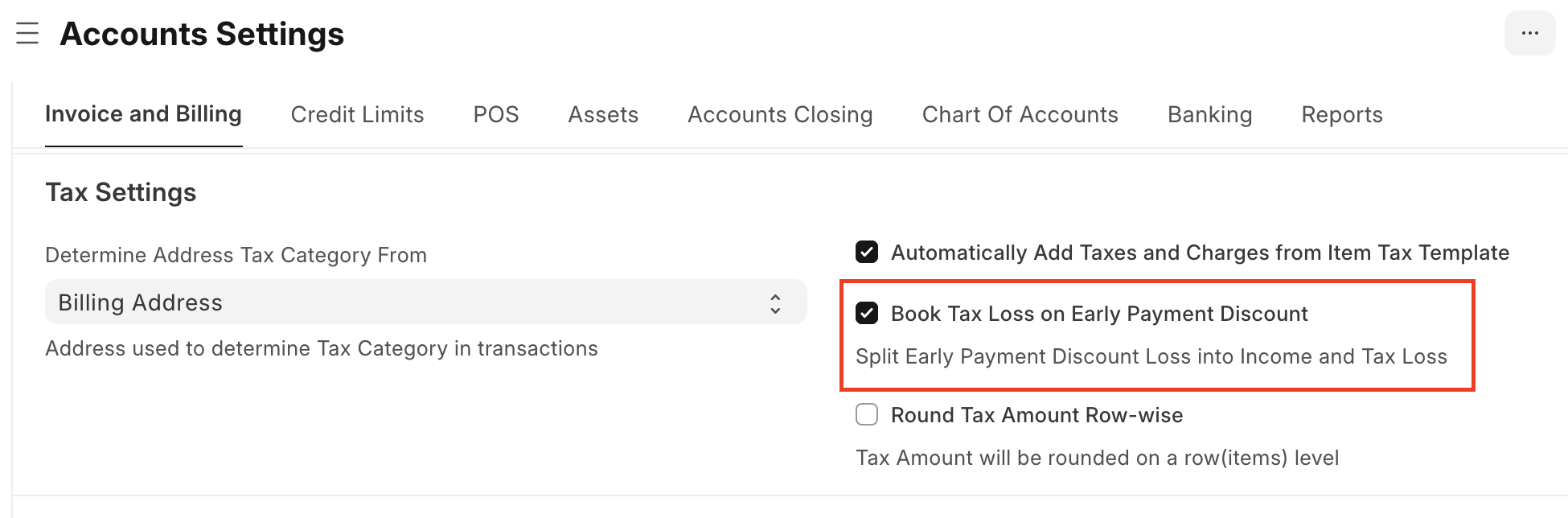
The other setting that influences discount accounting is under Accounts Settings -> Invoice and Billing -> Tax Settings. The user may elect to have discounts allocated against tax accounts by checking Book Tax Loss on Early Payment Discount.
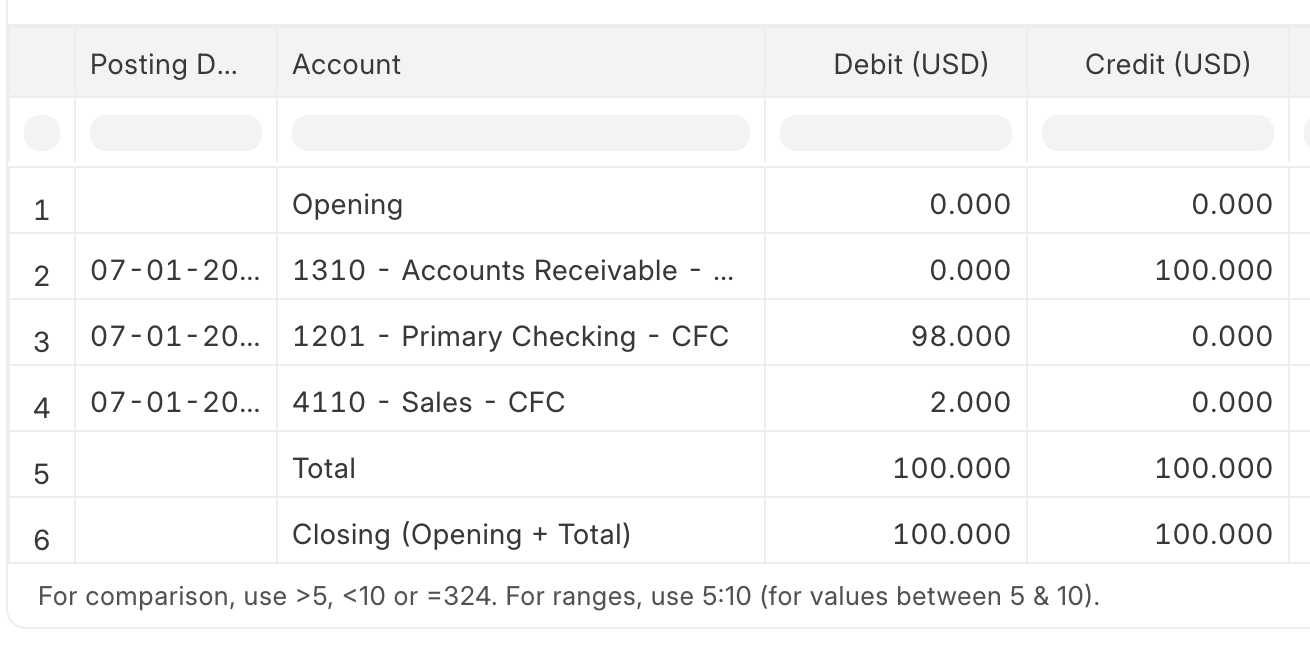
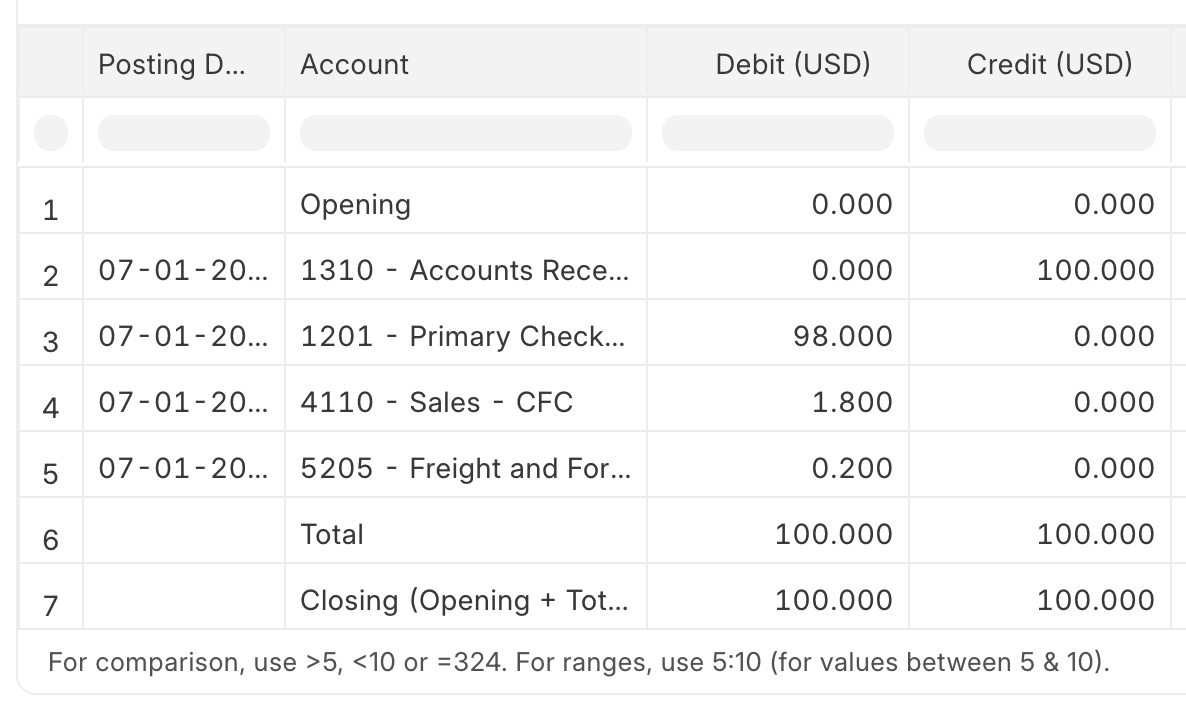
If the box remains unchecked (its default state), ERPNext accounts for the full discount amount against the Default Payment Discount Account (or whichever account the user selects in the Payment Entry's Payment Deductions or Loss table, as discussed above). Below shows the General Ledger entries for a 2% discount on a $100 Sales Invoice, which includes $90 for goods sold and $10 for shipping (recorded in the Taxes table against the Freight and Forwarding Charges account).
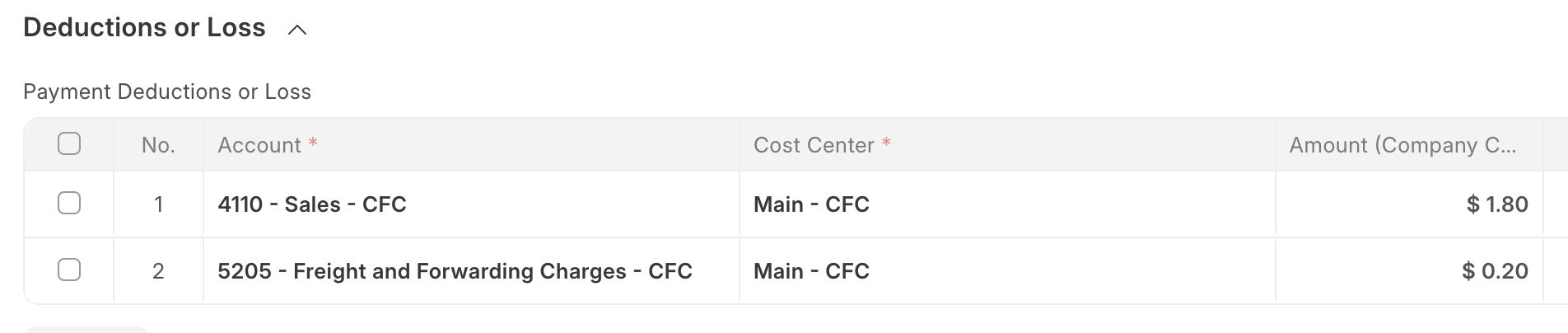
If the Book Tax Loss on Early Payment Discount box is checked, then ERPNext splits the discount and proportionally applies it to the tax accounts as well. The following screen shots show this behavior in the Payment Entry's Payment Deductions or Loss table and the General Ledger entries for the same $100 Sales Invoice with a 2% discount.
Creating a Payment Terms Template
Once all the necessary Payment Terms are defined in ERPNext, they may be used to create a reusable Payment Terms Template. The Payment Terms Template is what links into a Quotation, Order, or Invoice document, and what ERPNext uses to calculate that document's due dates and payment amounts in the Payment Schedule.
The user can check the option to Allocate Payment Based On Payment Terms. If selected, if a document using this Payment Term Template shows up in the References table of a Payment Entry, ERPNext will try to allocate the Payment Entry amount to any of that document's outstanding Payment Terms. If it's left unselected, the user needs to allocate payment amounts and manually link to the Payment Term in a Payment Entry.
The Payment Terms table then links to all the relevant Payment Terms that make up the template. It would have one row in the case of a Net 14 template, but would have multiple rows for the installment-based 6 month rental example or the performance-based 3 milestone example.
Once a Payment Terms Template is in place, it may be used in a Quotation, Purchase Order, Purchase Invoice, Sales Order, Sales Invoice, or a Point of Sale Invoice. It may also be used as a default template for a Customer, Supplier, Customer Group, Supplier Group, or Company.
Linking Payments to the Payment Schedule
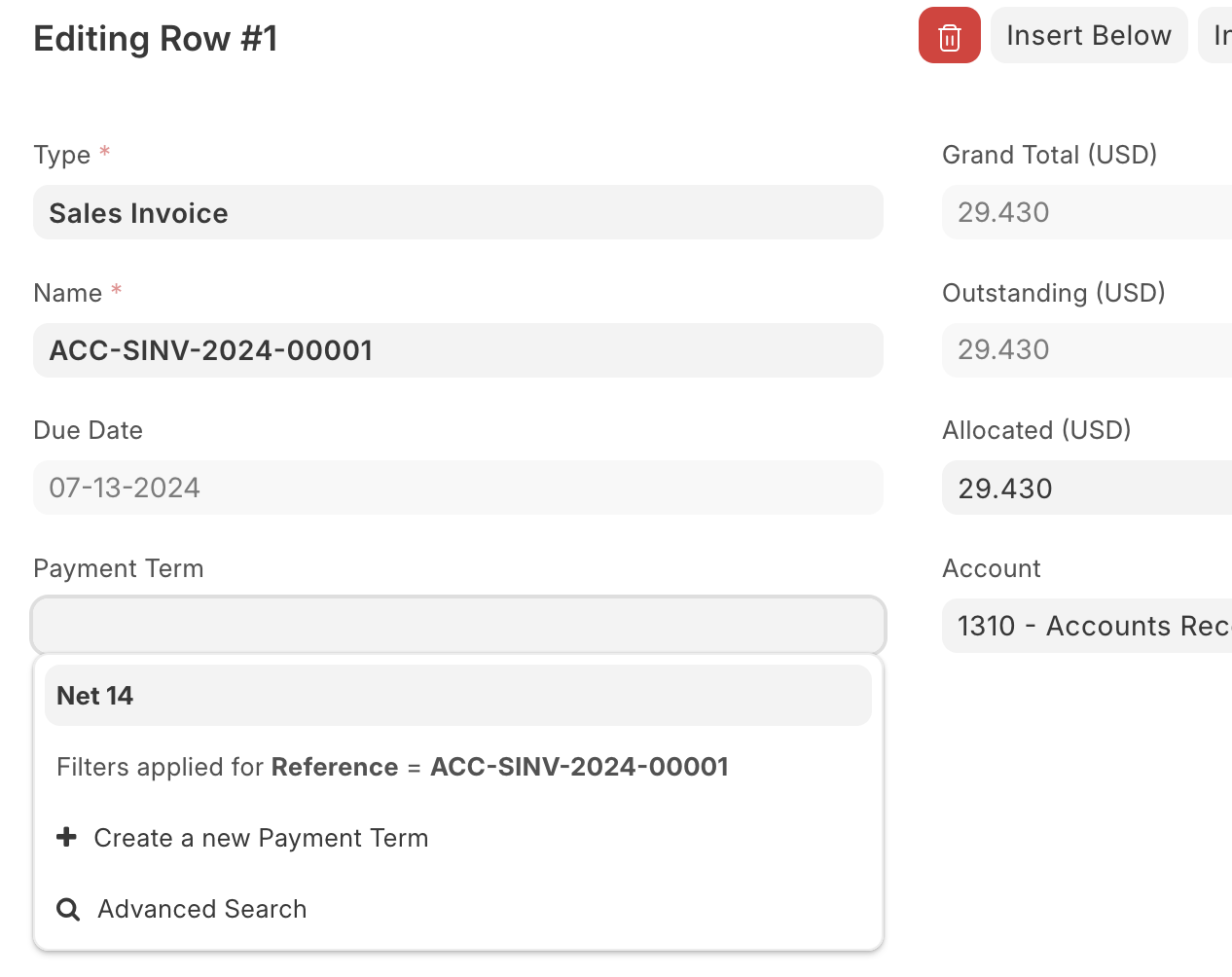
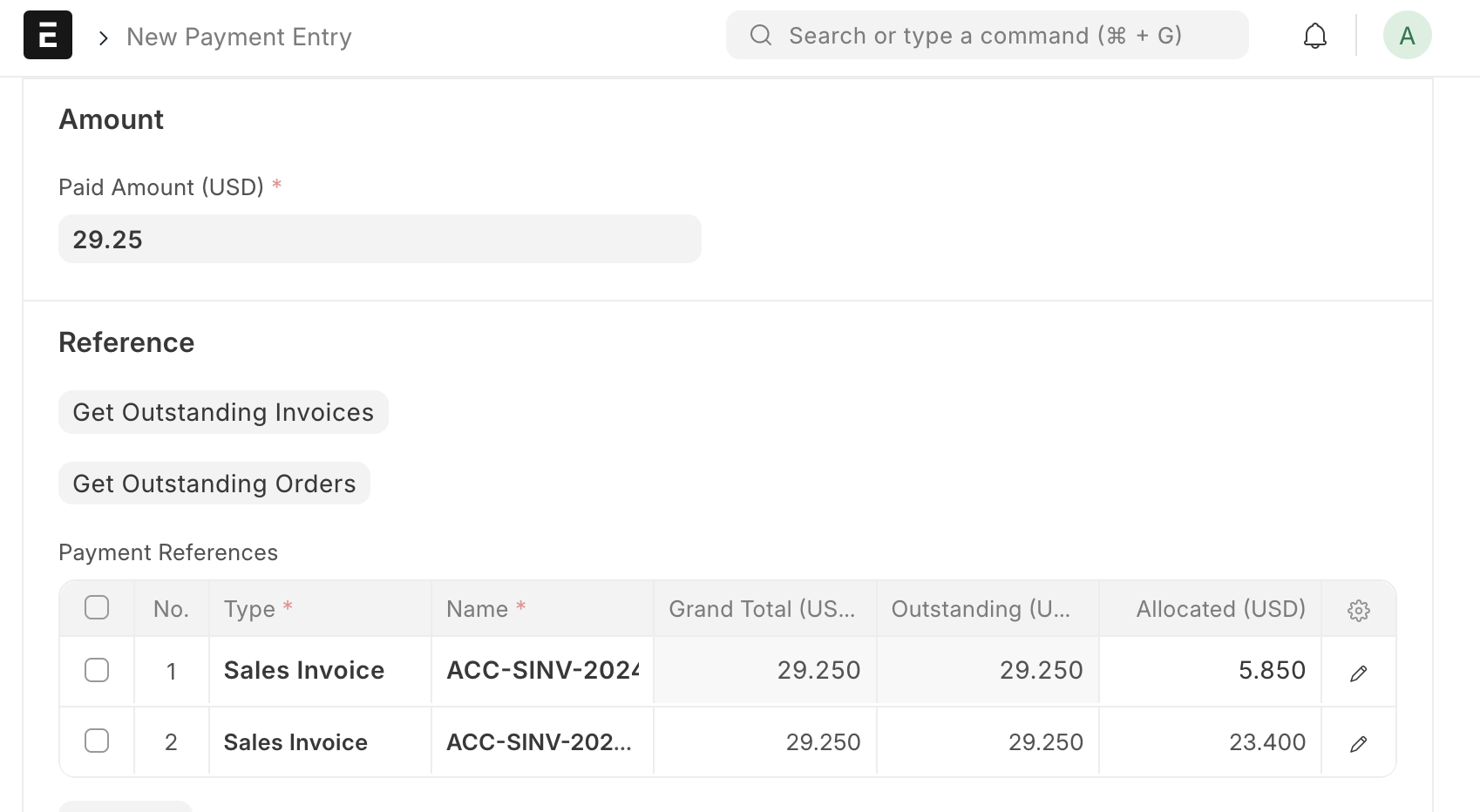
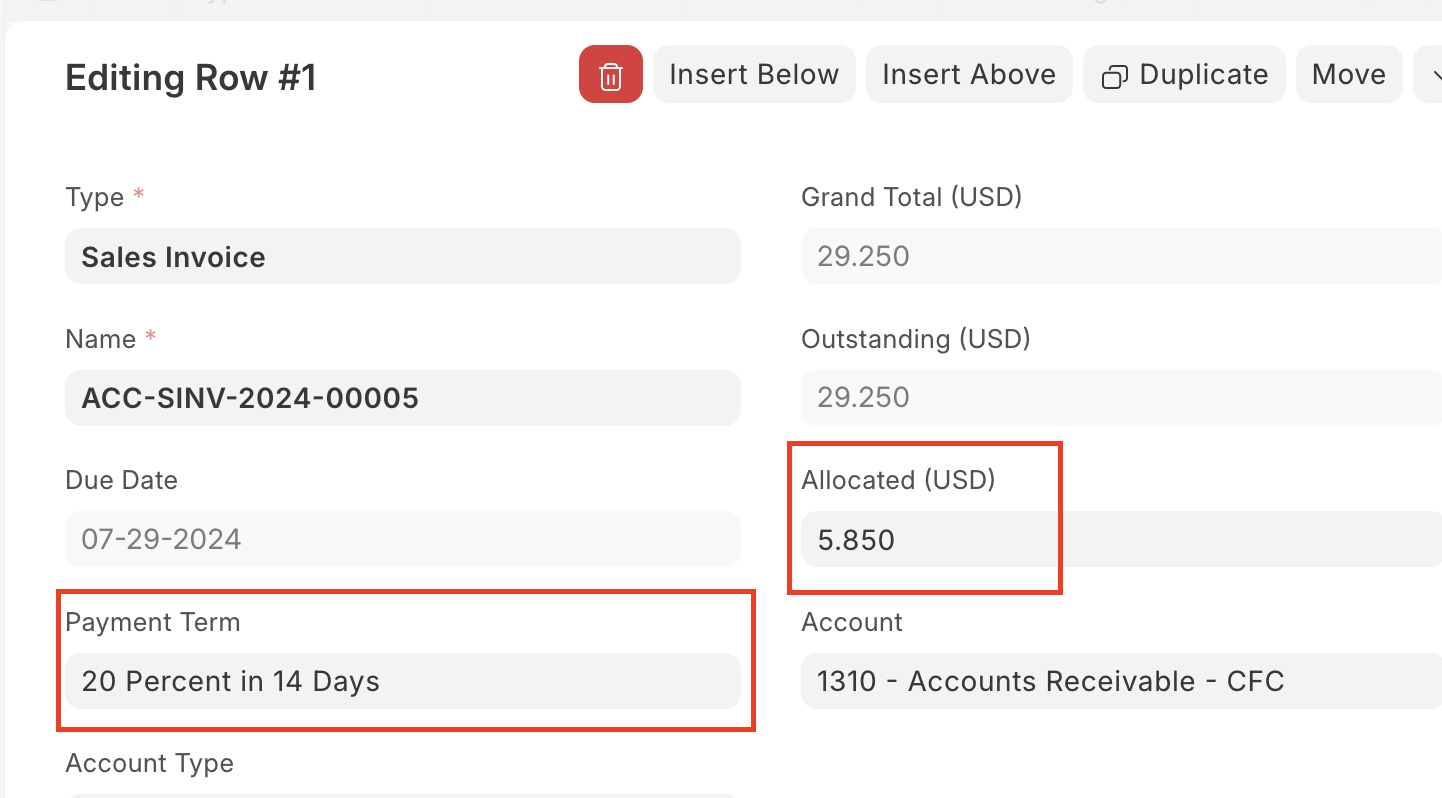
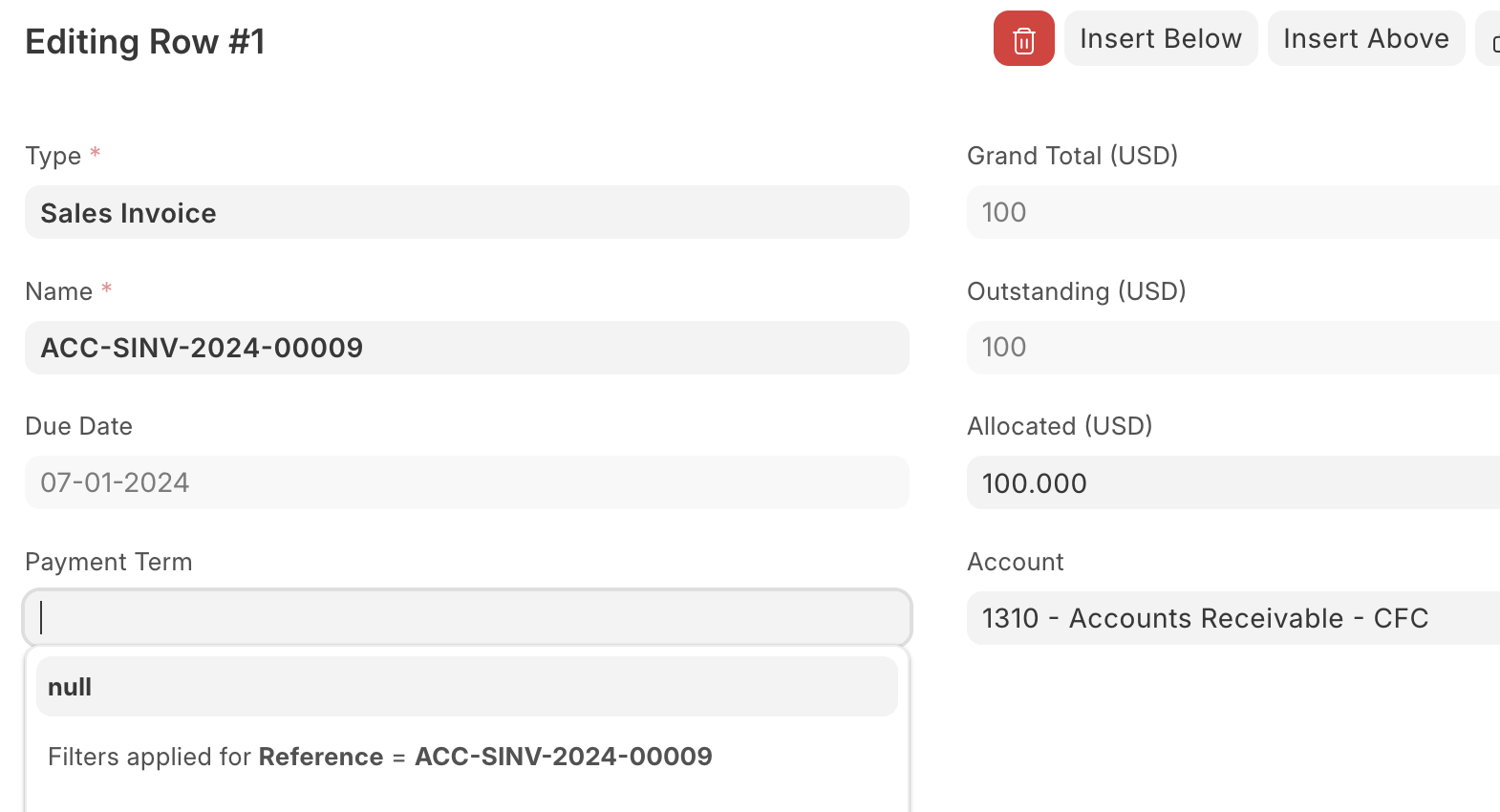
After a user submits a document with a Payment Terms Template, ERPNext creates document-specific payment terms within the Payment Schedule. Each term has parent information (the document's name and type), the calculated due date, payment amount, paid amount, outstanding amount, and applicable discounts. In order to keep the Payment Schedule updated upon a payment, the Payment Entry must link to the Payment Term. The field is found within the row detail in the Payment References table. The linking happens automatically if the Allocate Payment Based On Payment Terms box were checked in the Payment Terms Template. If not, the user can manually link to a Payment Term by clicking on the Edit field of the row in the Payment Entry's Payment References table, and selecting the Payment Term's name in the dropdown box.
If the payment applies to multiple terms, then it must be split so there's an individual row in the Payment References table with the amount and link to each Payment Term the payment applies to.
Setting Default Payment Terms Templates
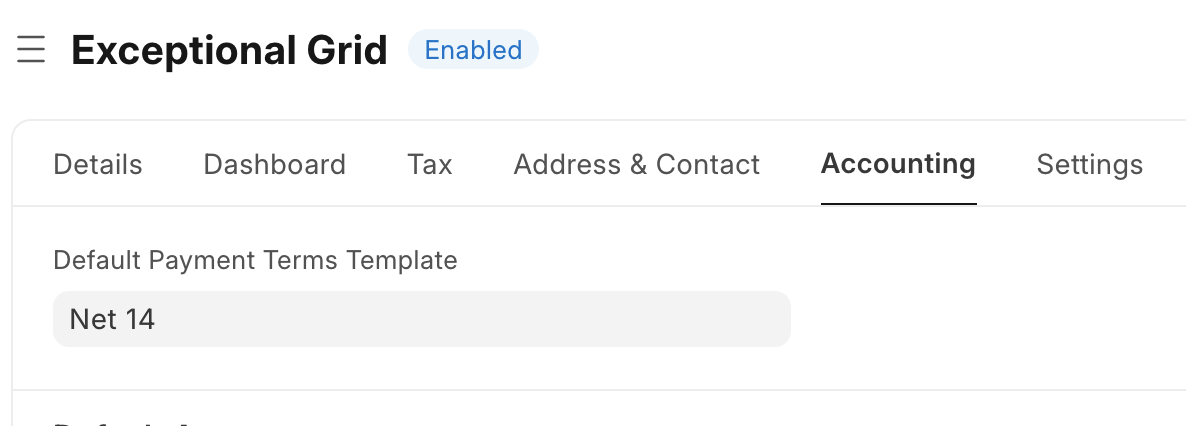
The user can specify a default Payment Terms Template for individual parties (a Supplier or Customer), for Supplier Groups or Customer Groups, or for a Company. If ERPNext can find a default template for a given party, group, or Company when the user creates a new Quotation, Order, or Invoice for them, it will automatically fill in the Term section of the document.
The order that ERPNext checks to find a default template is as follows:
- checks the relevant party (Supplier or Customer document). This is set in the Accounting tab.
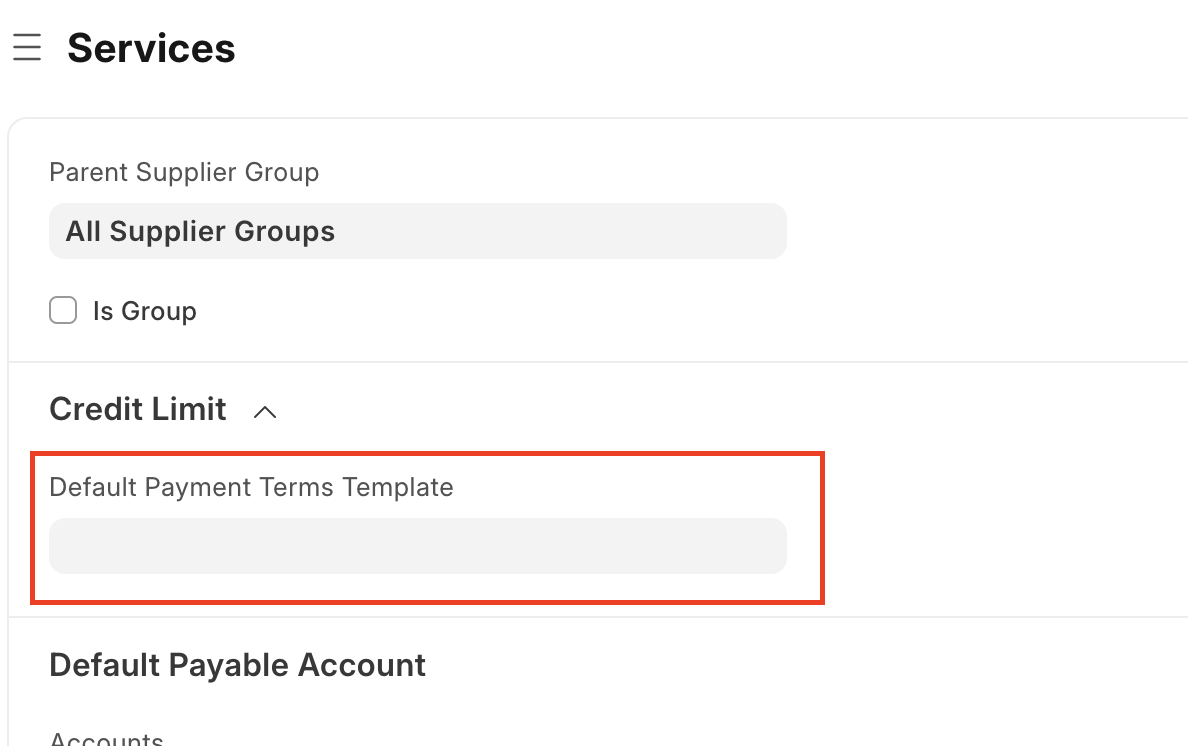
- checks for a template specified at the party's immediate parent Supplier Group or Customer Group.
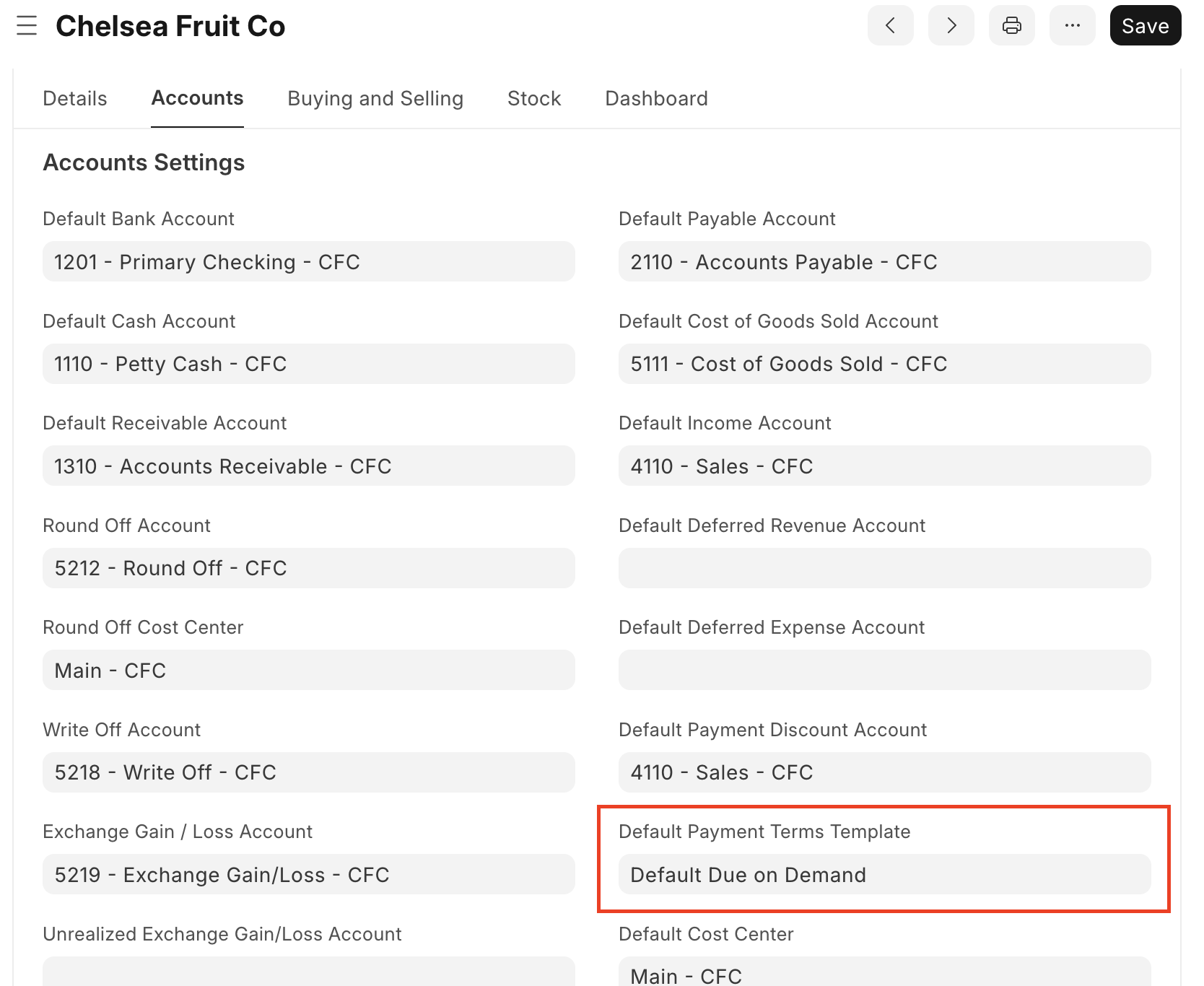
- checks for a template specified at the Company that the given document is connected to. This is set in the Company page under Accounts -> Accounts Settings.
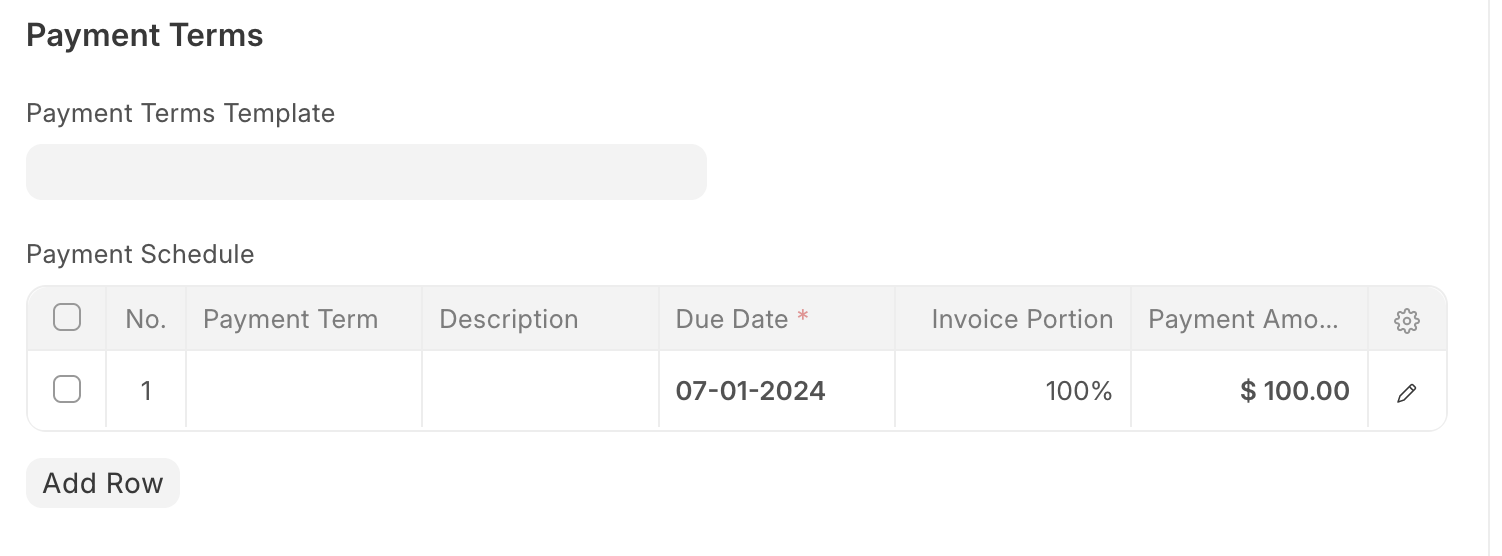
- if ERPNext fails to find a default template after the first three checks, it will create a nameless Payment Term that's due when the document is. This isn't a desirable workflow because it's impossible to link to a nameless Payment Term in a Payment Entry, therefore the Payment Schedule won't update. Setting a simple default at the Company level is one simple way to avoid this situation.
ERPNext Applications Utilizing Payment Terms
AgriTheory develops two open-sourced applications that extend ERPNext with functionality that respect Payment Terms: Check Run and Electronic Payments. Both applications have features that integrate with a Company's Payment Schedule.
The Check Run application allows users to aggregate payments to Employees and Suppliers, bulk-generate PDF checks, and generate ACH files for electronic payments with their bank. The app displays outstanding transactions to the user, who is able to select the ones to pay in that Check Run. Any Invoices with multiple Payment Terms will have a separate row for each term, versus showing only one row with the total due for the Invoice. When Check Run creates the associated Payment Entry for one selected term, it automatically links to the Payment Term to keep the Payment Schedules updated.
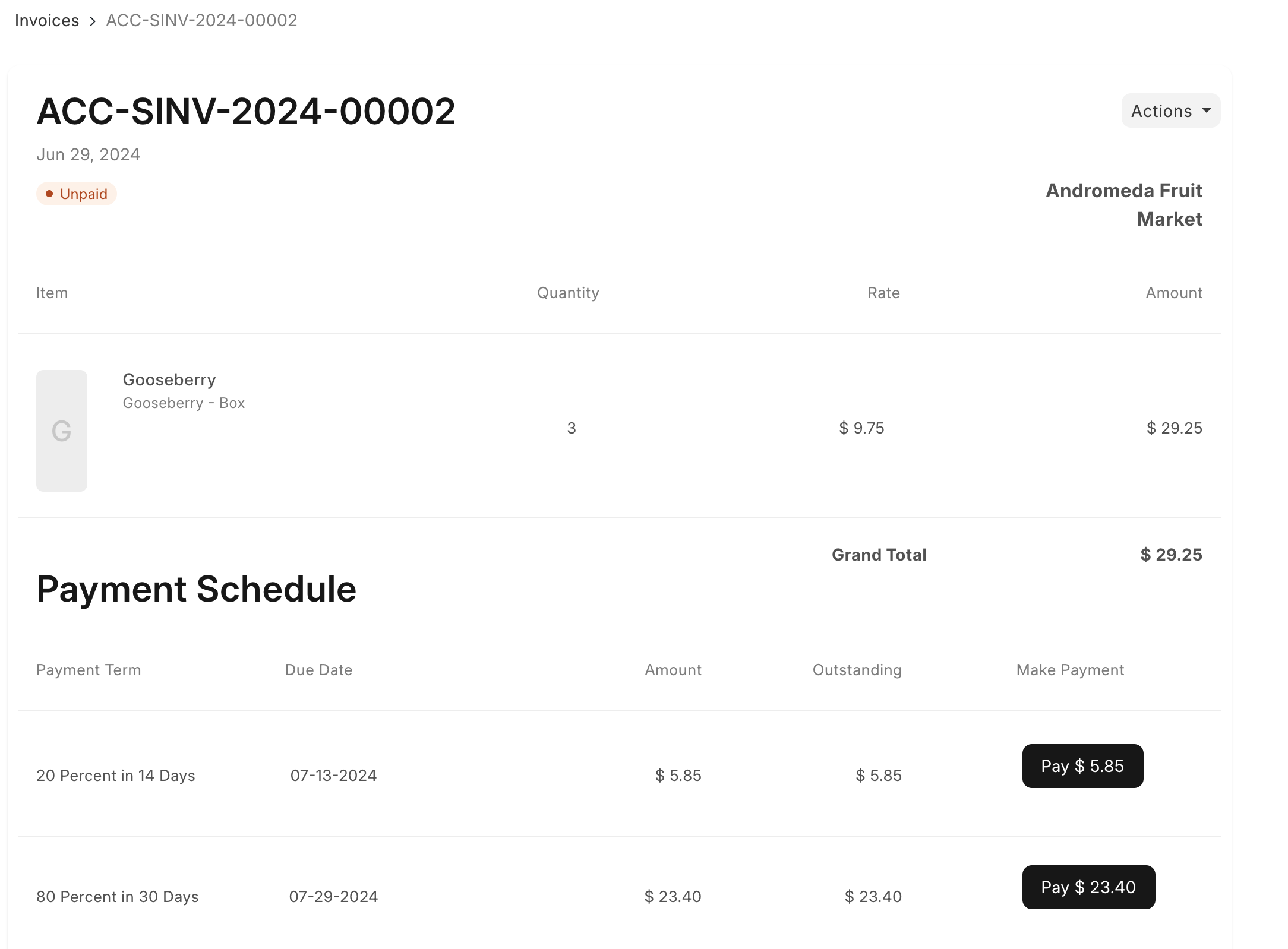
The Electronic Payments application allows a Company to receive credit card or ACH payments from Customers from the portal or to send ACH payments to Suppliers. When a Customer logs into their portal page and navigates to an outstanding Invoice, they'll see the Payment Schedule at the bottom and have the ability to pay by Payment Term.
Progressive Invoicing
At the time of writing, progressive invoicing - or the ability to invoice a Quotation or Order in multiple installments as fulfillment targets are met - is a requested but unimplemented feature in ERPNext. Payment Terms may be used to define the installments and track each payment made against one invoice, but the ability to create separate invoices based on the Payment Schedule is currently not supported.
The closest available functionality in ERPNext to create progressive invoices requires the user to create an Invoice off the original Order, then manually manipulate the items and/or the item quantities to reflect the portion to bill in that Invoice. Unfortunately, this approach has limitations and doesn't cover all scenarios.
The following examples show how this is possible for service items (assuming the ordered deliverable can be broken into individual items based on a target or milestone) and for stock items (assuming multiple quantities that can be divided across Invoices).
Multiple Invoices for a Service Item
If possible, this approach assumes that the total deliverable can be defined as separate, milestone-based items. For example, a contract for $10,000 worth of services is agreed upon in a Sales Order that includes three milestone "items" and a matching Payment Schedule. When the first milestone is delivered, the Customer is invoiced for 30%, or $3,000, the second milestone is for 50%, or $5,000, and the final milestone is for the remaining 20%, or $2,000.
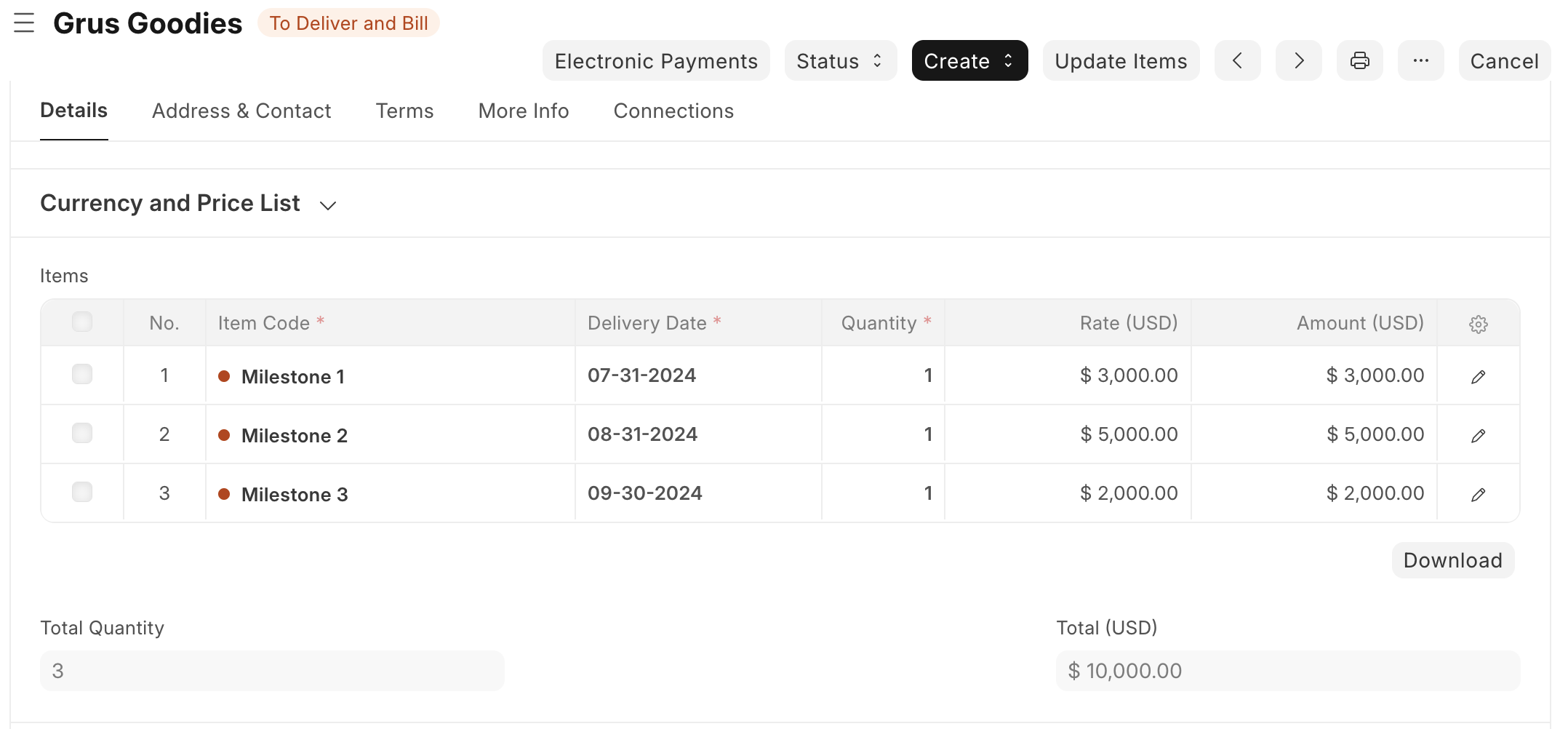
The Payment Schedule in the Sales Order links to a Payment Terms Template with three Payment Terms for 30%, 50%, and 20% of the invoice, respectively. In this case, the Payment Schedule is purely for the user's reference for percent and/or due date for each milestone and isn't required. Once an Invoice is in the system and there's a Payment Entry reflecting a payment against it, the Payment Entry won't display the option to link back to the Sales Order's Payment Schedule terms.
When the company delivers the first Milestone and is ready to invoice the Customer, the user would create a Sales Invoice off the Sales Order, then manually remove the second two items, so the Invoice's Items table only includes Milestone 1. The Payment Schedule in the Sales Invoice should not be the same split as the Sales Order - the Invoice is only for one Milestone item, so the Payment Terms should reflect how the Customer pays for that specific installment of the contract.
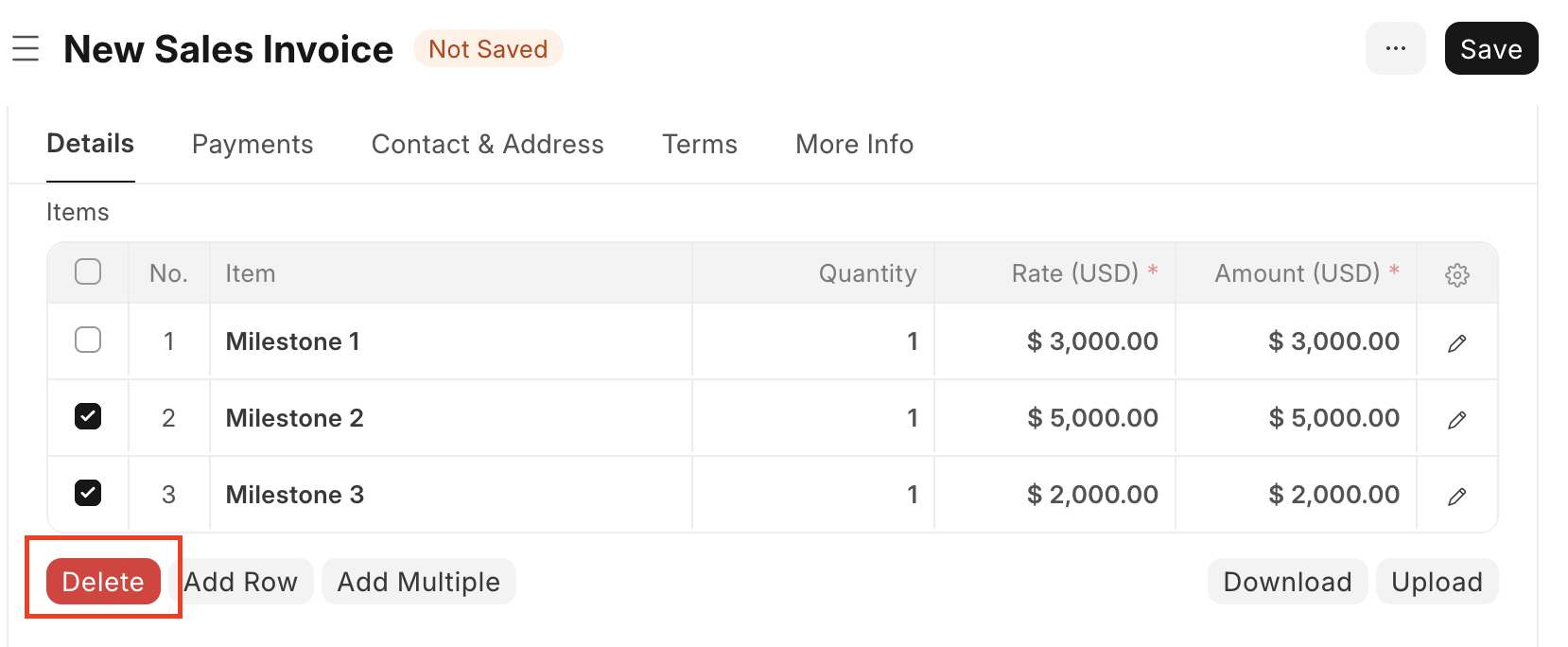
As the company delivers each milestone, the user can follow the same pattern to create each necessary Invoice.
Multiple Invoices for Stock Items
This approach assumes that the quantity of the Items included in the Order or Quotation is divisible (i.e. the quantity is greater than 1) so individual Invoices may be created for a subset of the original ordered quantity as needed. This is a useful technique when Items are delivered in installments, with each delivery requiring its own Invoice. If the user knows beforehand what the percentage of items delivered in each installment is, then the Payment Terms in the Quotation or Order may be a helpful reference, otherwise the Payment Terms won't be much help in this scenario.
This example assumes a Sales Order has three different items each for a quantity of 10. The user can create a Sales Invoice from the Order and manually adjust the Items table to include only what has been fulfilled. The example shows a draft Sales Invoice's Items table where the quantities have been changed to 5 each, since only half of the original Order was delivered.
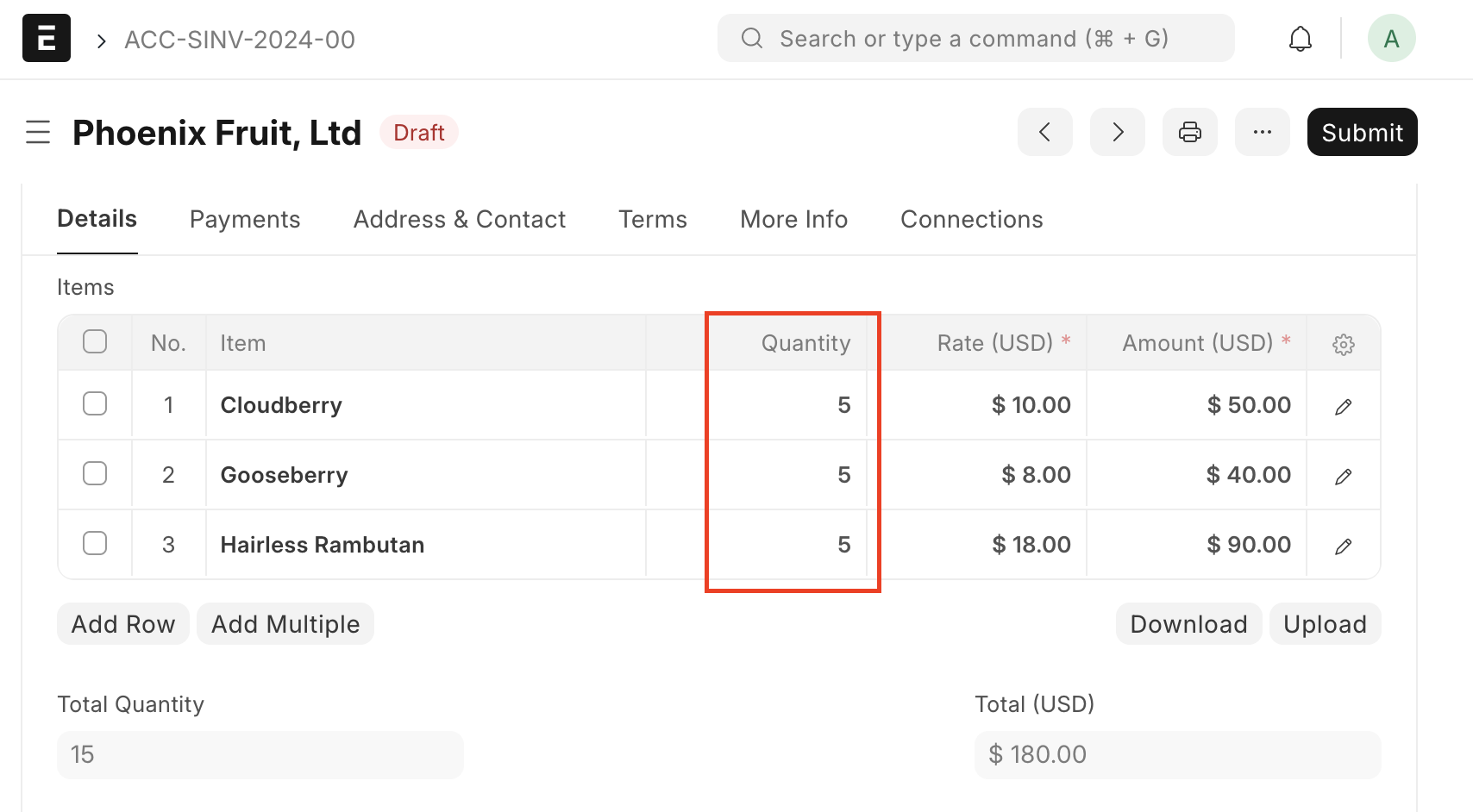
Progressive invoicing scenarios with needs beyond splitting Items or quantities may require customizations to ERPNext.
References: